
How to Create a Campaign
A complete 7-step walkthrough for launching a display or video campaign in Topple.
Last updated September 1, 2026
Step 1 — Campaign Type
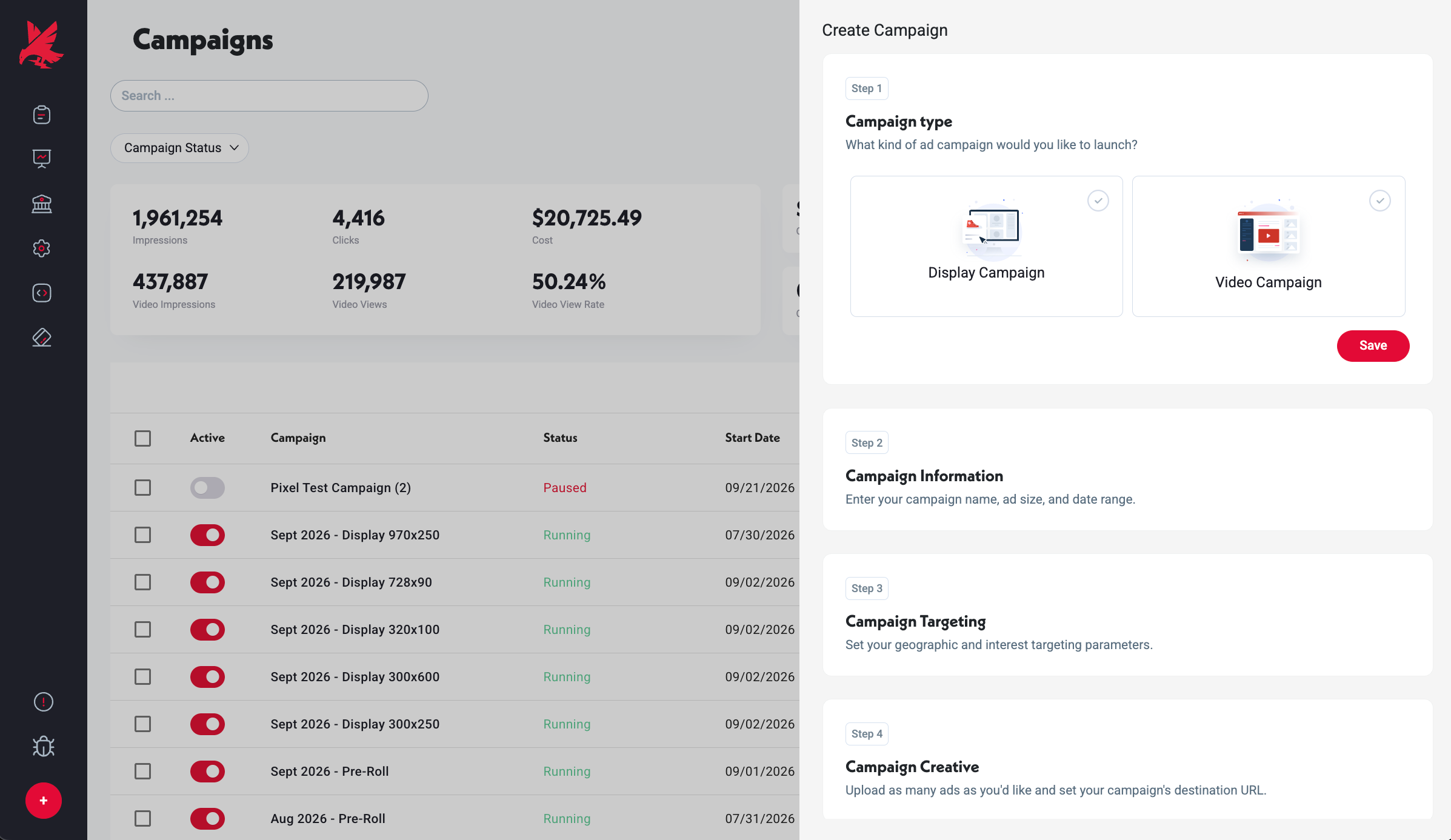
Choose between Display and Video. Display ads run in standard banner sizes across the network and are priced on Dynamic CPM — the cost per thousand impressions is determined by real-time demand from other advertisers. Video ads run as short-form video and are billed only after a continuous 10-second view (CPV). Display is typically more cost-efficient at scale; video delivers higher engagement, higher CTR, and stronger brand impact. See Ad Specifications for the full list of accepted formats and sizes.
Step 2 — Campaign Information
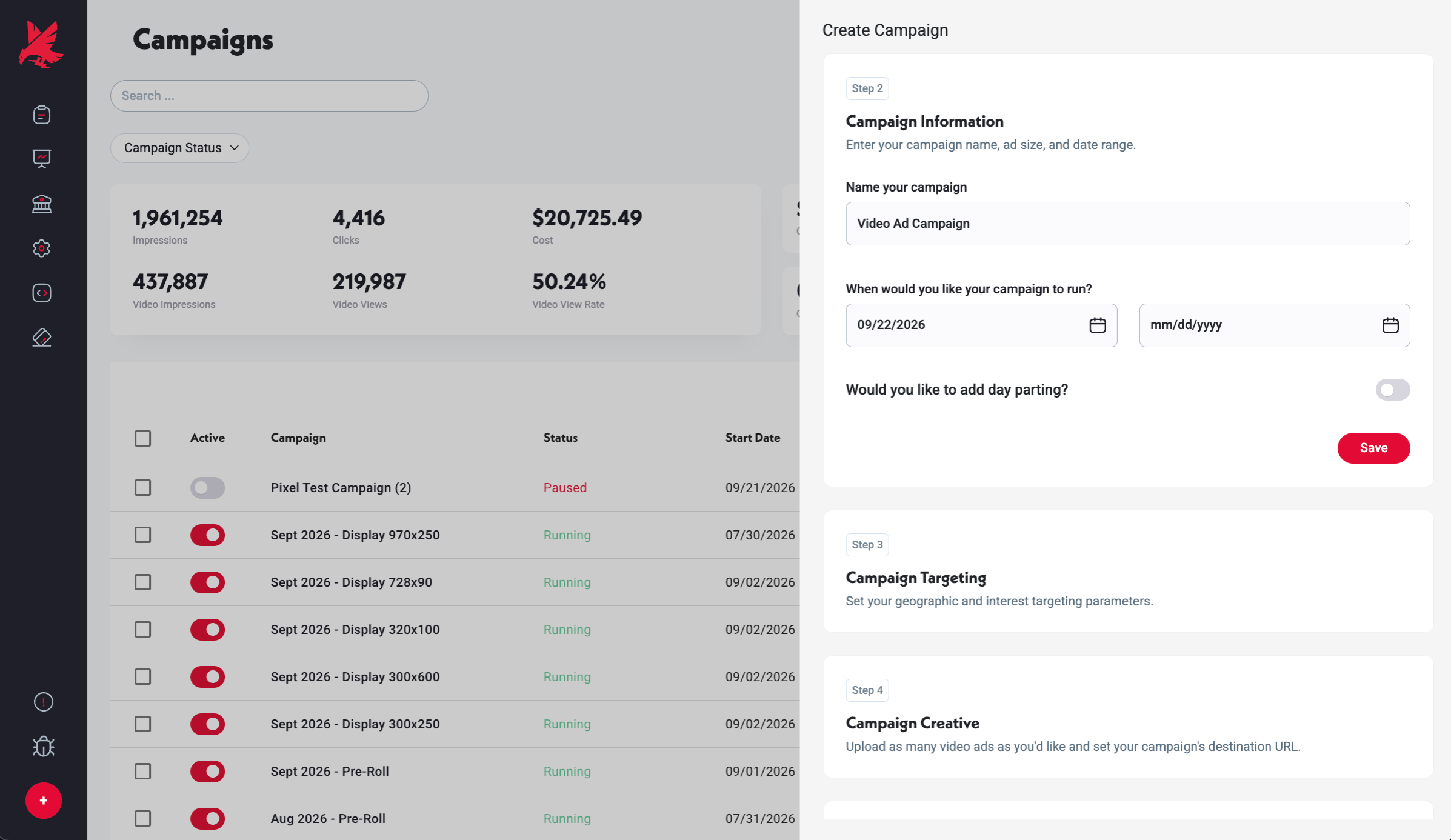
Name your campaign, choose a file size (display only), and set start and end dates. The end date is optional — leaving it blank runs the campaign continuously until you manually pause it. You can also enable day-parting here to restrict the hours and days your campaign runs.
Day-parting is useful when your offer has a time-sensitive context. For example, a late-night pizza delivery service might run ads only between 8 PM and 2 AM to match when people are actually ordering. See the Day-Parting article for setup steps.
Step 3 — Targeting
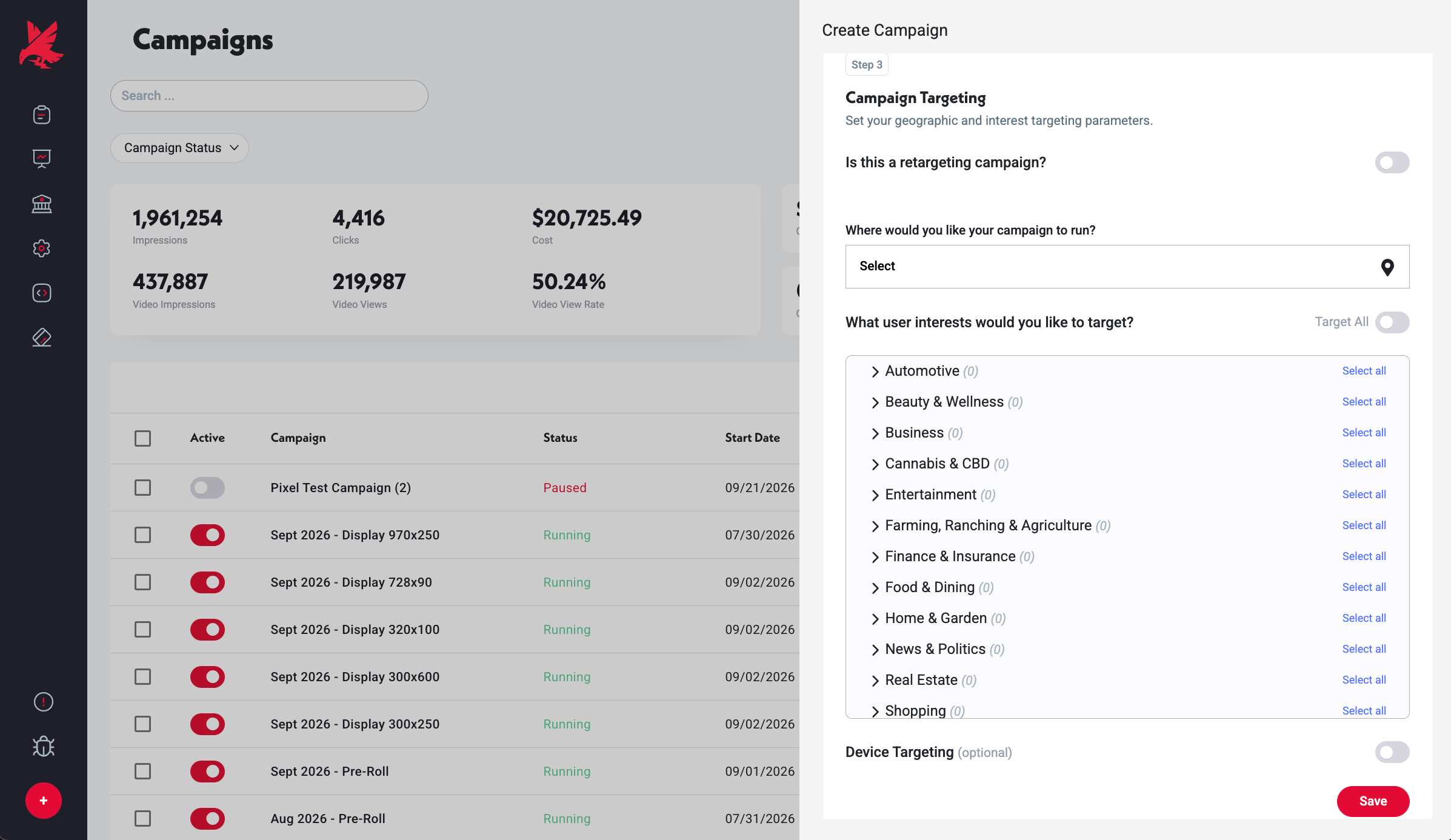
Set who sees your campaign. You can combine any of the following targeting options:
- 1Country and region — US, Canada, Mexico, UK, and all EU countries, with region-level narrowing available.
- 2Interest categories — target users by declared interest category. Leave blank to run Run-of-Network (broad reach across the full network).
- 3Device type — iPhone/Android, Mac/Windows, tablet, and more.
- 4Audience type — Prospecting (default, targets new users who have never visited your site) or Retargeting (exclusively re-engages past visitors, requires a retargeting pixel).
Step 4 — Creative
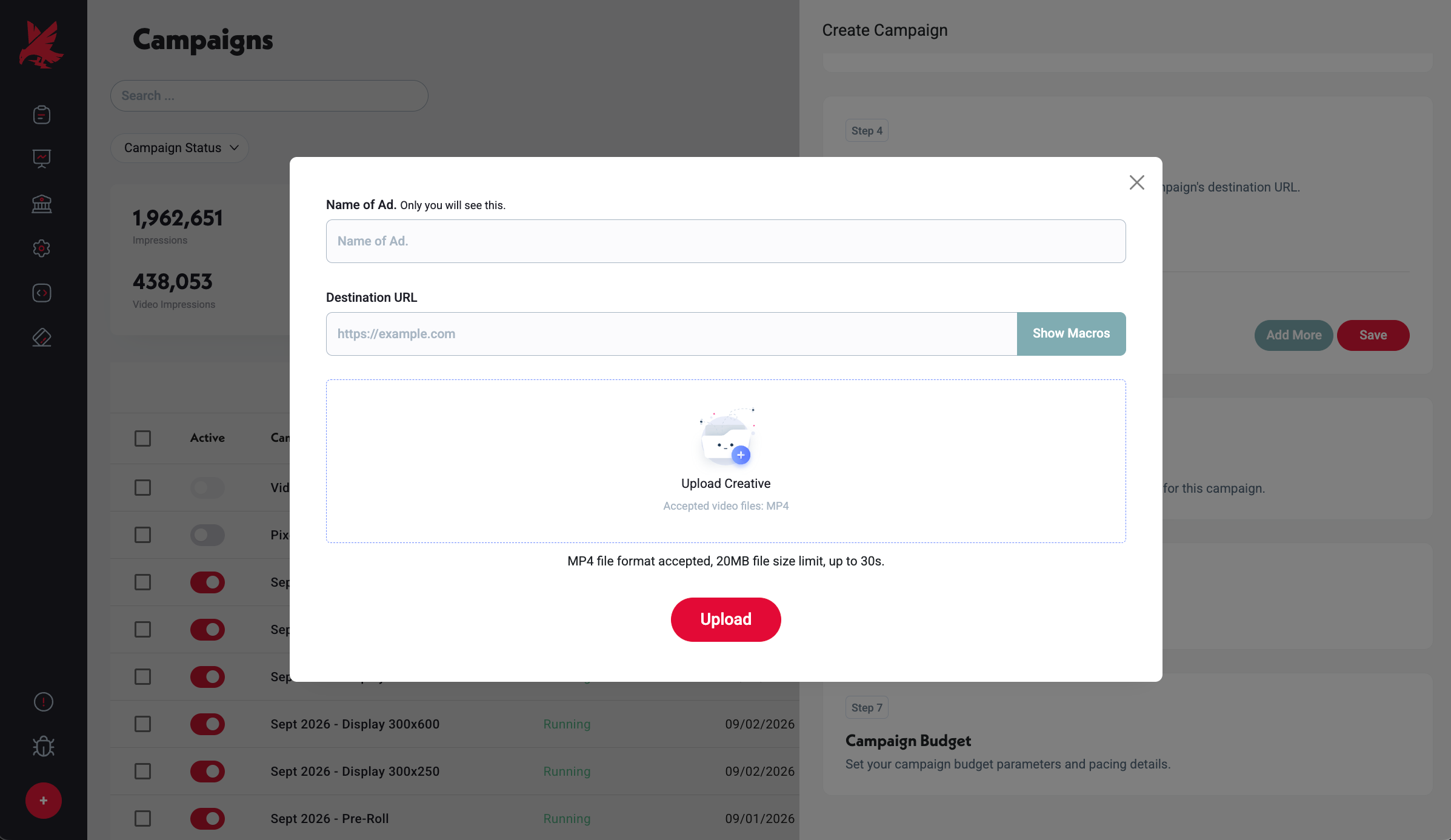
Upload your creative file and name each ad. Give every ad a clear destination URL — the page a user lands on after clicking. We recommend naming ads with a consistent convention so creative reporting is readable: Platform_Brand_Campaign_Format_Size_Variation. For example: Topple_Ford_SummerSavings_Display_300x250_A. Add UTM parameters to your destination URL so you can track the source in your analytics platform. Topple also supports macros in destination URLs to pass click-level data automatically — see the Destination URLs & Macros article for details.
Step 5 — Payment
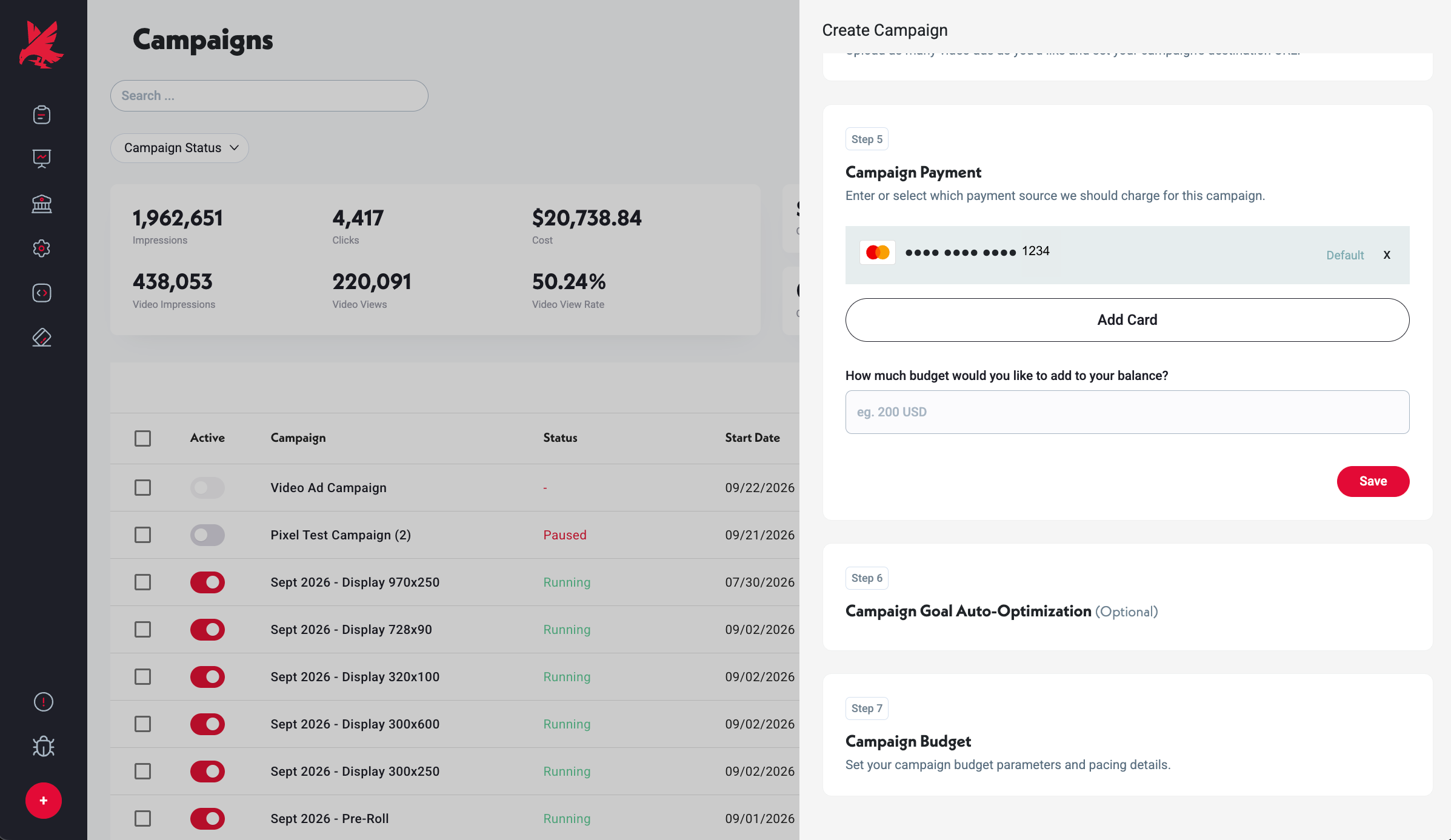
If no card is on file, add one now. If a card is already saved, you can also add funds to your Account Balance here. If a card is already saved and you do not need to add funds, click Save to proceed without changes.
Step 6 — Goal Auto-Optimization (Optional)
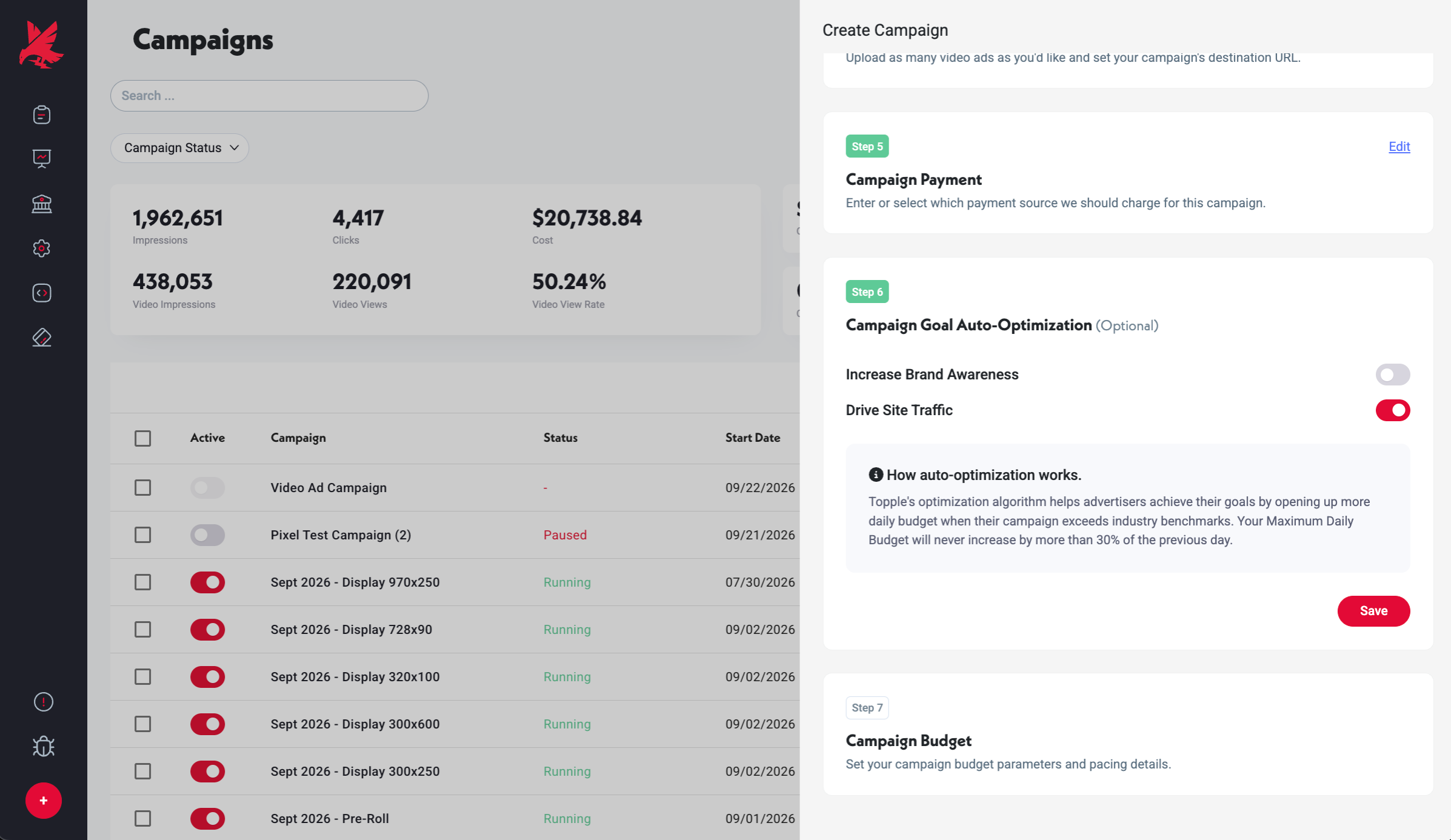
Goal Auto-Optimization is optional. When enabled, Topple automatically increases your Maximum Daily Budget by up to 30% on days when the platform identifies strong delivery opportunities toward your chosen goal — Brand Awareness or Site Traffic. You can manually override or disable this at any time from the campaign edit screen.
Step 7 — Budget
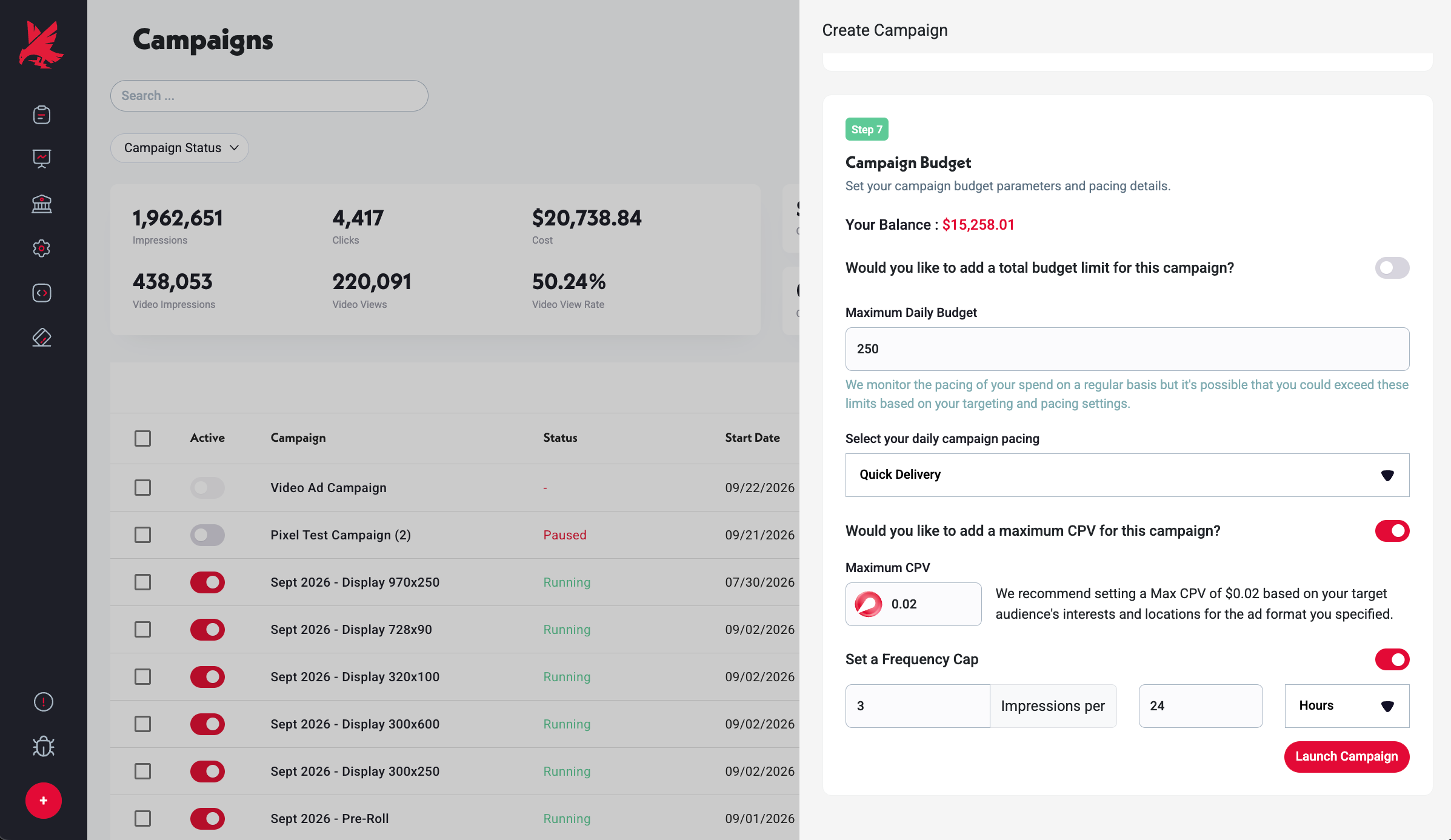
Set your budget parameters. Each one controls a different aspect of how your spend is managed:
If you set a Total Budget on a campaign with no end date, the campaign will pause as soon as the cap is reached — even if it pauses partway through the day. Only set a Total Budget if you intend the campaign to stop after a defined spend.
- 1Total Budget — an optional hard cap on lifetime spend. When reached, the campaign pauses automatically.
- 2Maximum Daily Budget — the most the campaign can spend in a single day. Topple may exceed it by up to 20% on high-opportunity days.
- 3Campaign Pacing — Fast spends the daily budget as quickly as possible each day; Even spreads it throughout the day.
- 4Maximum CPM — your bid ceiling. If set too low relative to market demand, the campaign will under-deliver or not serve at all.
- 5Frequency Cap — optionally limits how many times a single user sees your ads within a given time window.
Common Mistakes
- 1Setting a Total Budget without an end date — if the Total Budget is reached mid-flight, the campaign pauses automatically. That's expected, but it surprises advertisers who assumed the campaign would keep running. Either set both a Total Budget and an end date, or monitor your balance and the campaign's spend rate.
- 2Setting Maximum CPM too low — if your CPM ceiling is below market rate for your targeting, the campaign won't win any auctions and will show zero or near-zero delivery. Start at or above the suggested range for your targeting tier and adjust based on actual delivery.
- 3Forgetting a destination URL on a creative — a creative with no valid destination URL won't serve. Every ad must have a working URL entered in the Creative step.
- 4Not adding UTM parameters to destination URLs — without UTMs, Topple traffic appears as direct in your analytics platform and you lose attribution clarity.
If the Campaign Isn't Delivering After Launch
If your campaign is Running but spending nothing, see Why Isn't My Campaign Spending? If it's Running but showing zero impressions, see Why Aren't My Ads Getting Impressions? Both walk through the most common causes in order of likelihood.
Was this helpful?