
Day-Parting
Choose specific days and hours for your campaign to run so you only pay for impressions when your audience is most receptive.
Last updated September 1, 2026
What Is Day-Parting
Day-parting lets you schedule a campaign to run only during specific hours on specific days. Outside of those windows, the campaign pauses automatically and resumes when the next window opens.
TIP
A late-night pizza delivery service is the classic day-parting use case. Running ads only between 8 PM and 2 AM means you are paying for impressions exactly when people are placing orders — not at 9 AM when no one wants pizza.
How to Set Day-Parting
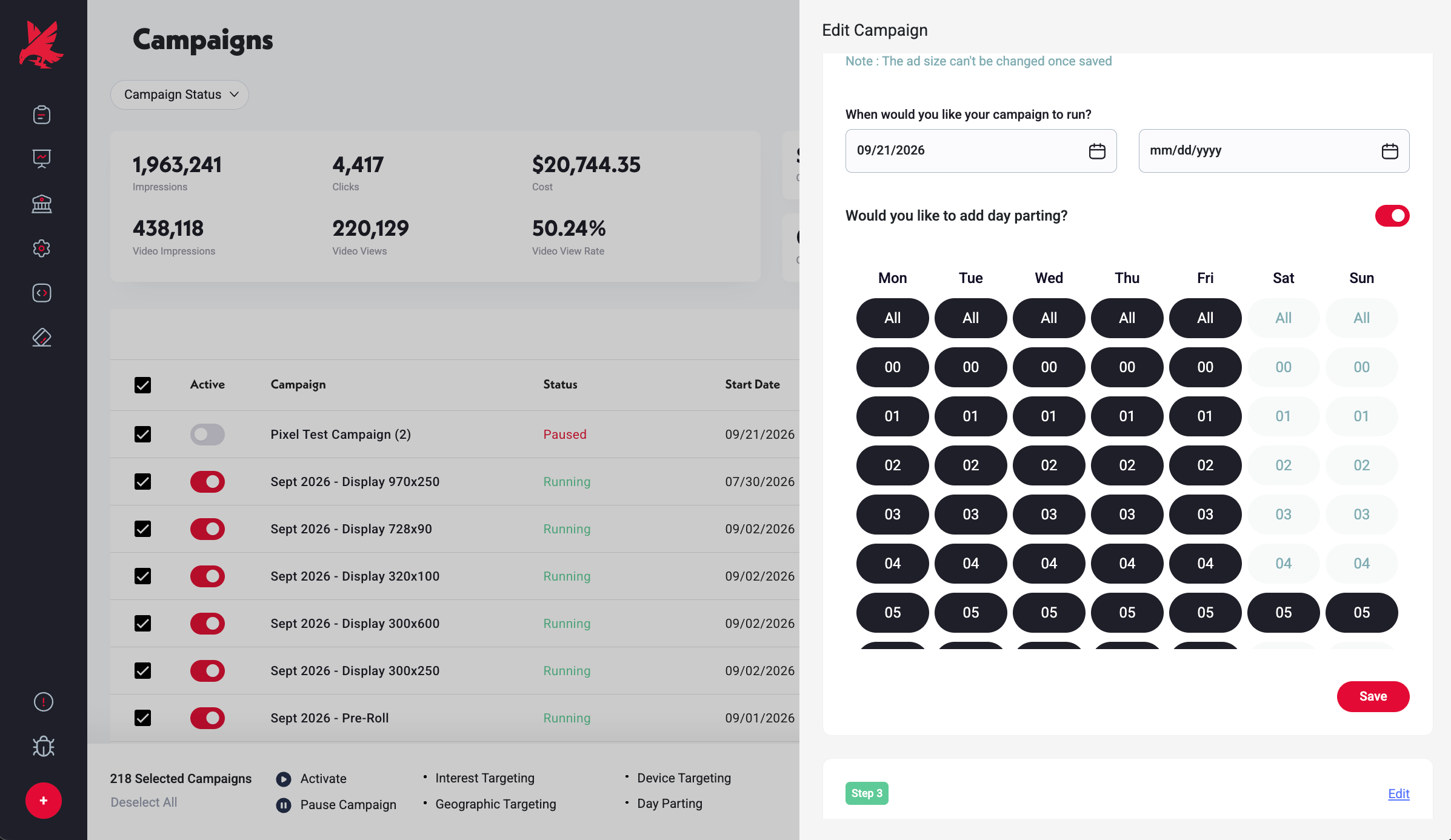
- 1In the campaign editor, go to Campaign Information.
- 2Toggle Day-Parting on.
- 3A day/hour grid appears. Select the days and hours you want the campaign to run.
- 4Save your selection and continue.
Common Mistakes
- 1Setting a window so narrow that the campaign delivers too few impressions — a 2-hour window on weekdays only leaves very little time for auctions to run. If delivery is much lower than expected, check whether day-parting is the constraint before adjusting budget or targeting. The campaign's Status will show Running during non-selected hours only if day-parting is the sole restriction, but impressions will be zero outside the window.
- 2Forgetting day-parting is still active after campaign setup — if you enabled day-parting during campaign creation and later wonder why your Running campaign shows $0 spend at certain hours, check the day-parting grid in Campaign Information. It will show exactly which hours are active.
- 3Not confirming which timezone governs the schedule — contact Topple support to confirm which timezone your day-parting windows are applied in before setting time-sensitive schedules.
Was this helpful?