
How to Fund Your Account
Step-by-step guide to adding funds to your Topple account balance so your campaigns can run.
Last updated September 1, 2026
Watch
Add Funds to Your Account
Step-by-step guide to adding funds to your Topple account balance so your campaigns can run.
How to Add Funds
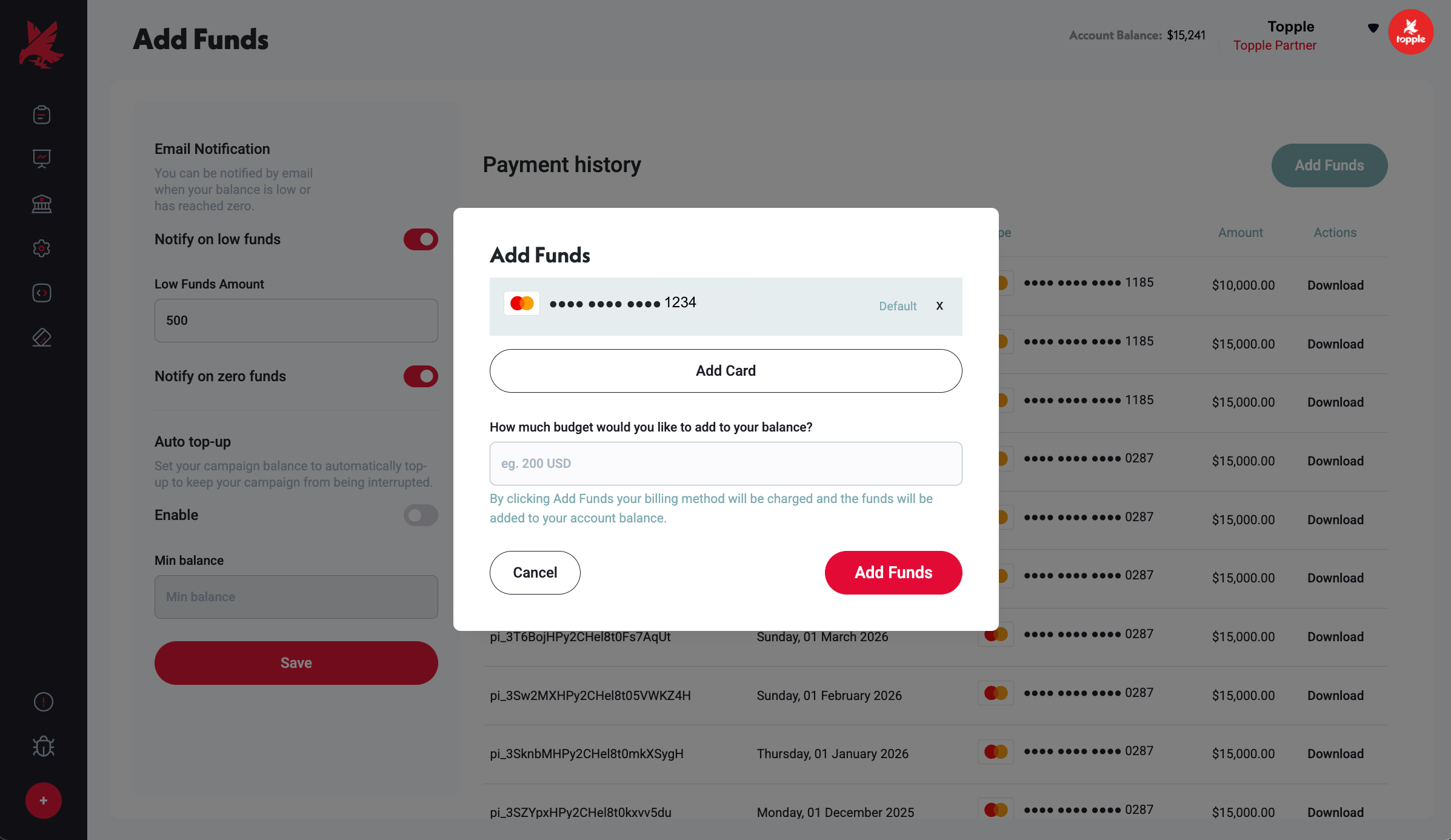
- 1Log in to your Topple account.
- 2Click your profile menu in the top-right corner.
- 3Select Billing.
- 4On the Billing page, select Add Funds.
- 5Enter the amount you want to add.
- 6If a payment card is already on file, confirm the payment. If not, add your card details first.
- 7Submit. Your Account Balance updates immediately once the payment processes.
Minimum Funding Amount
Contact support to confirm the minimum funding amount, as it may vary based on your account type.
When Funds Are Available
Funds added by credit or debit card are typically available for campaign use immediately after the payment processes. If you fund via ACH or Wire (Managed Service clients only), contact support for estimated timing.
Common Mistakes
- 1Adding funds but not realizing your Ad Spend Plan subscription still needs to be active — Account Balance covers your ad spend as campaigns run. It is separate from your Ad Spend Plan subscription, which determines your tier and bid floor. If your subscription has lapsed or you haven't selected a plan, funding your balance alone will not restore paid-tier features.
- 2Funding the account but forgetting paused campaigns must be manually resumed — adding funds does not automatically restart campaigns that were paused due to a zero balance. After funding, go to your Campaign Chart and resume any campaigns you want running.
Was this helpful?