
How to Set a Custom Ad Spend Plan Amount
How to enter a custom monthly subscription amount when subscribing to an Ad Spend Plan.
Last updated September 24, 2026
How to Set a Custom Subscription Amount
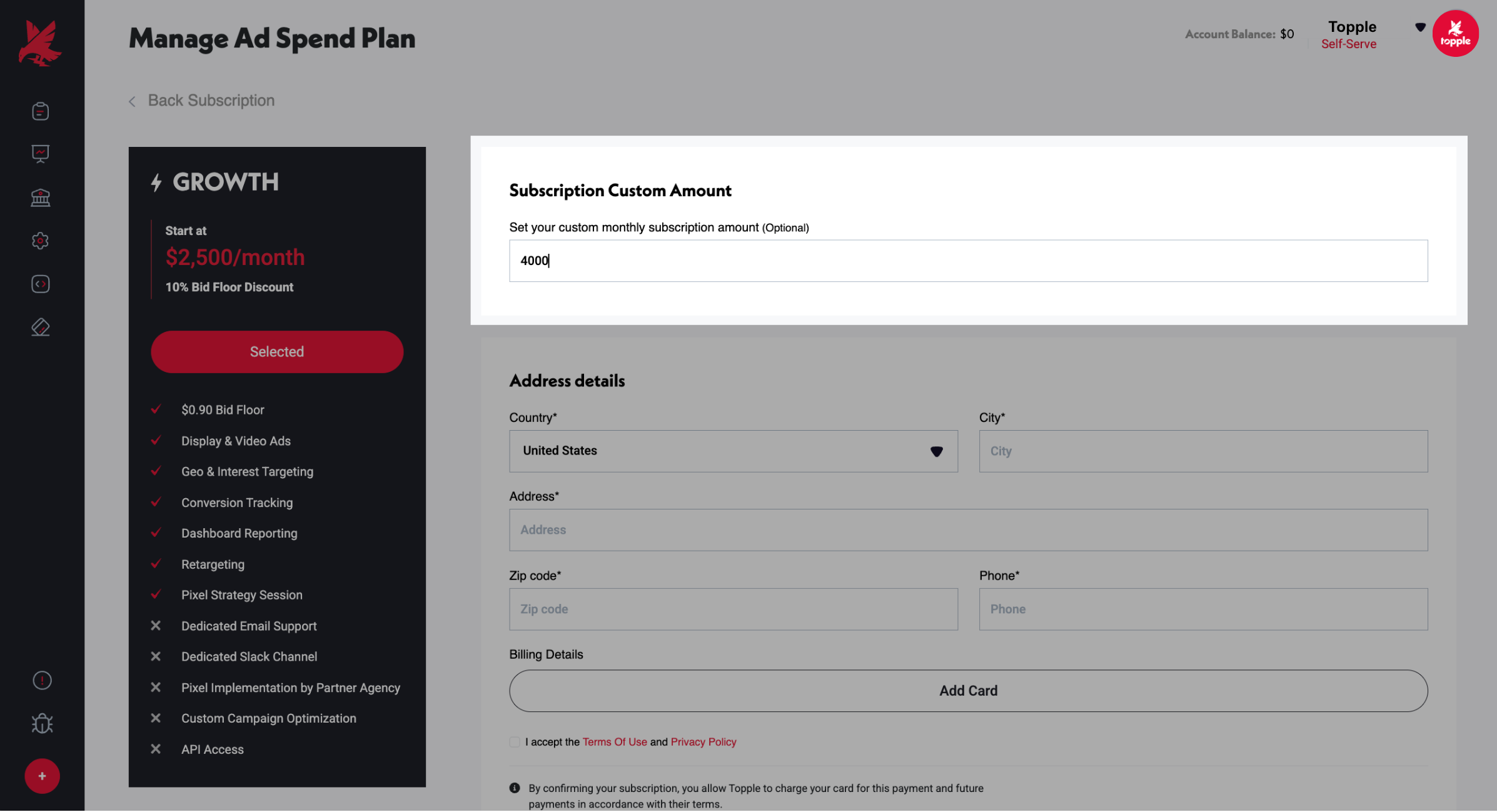
- 1Open 'Manage Ad Spend Plan' from your dashboard navigation.
- 2Select the Ad Spend Plan tier you want.
- 3Click the red Subscribe button for that tier.
- 4On the subscription page, find the 'Subscription Custom Amount' field near the top, labeled 'Set your custom monthly subscription amount (Optional)'.
- 5Enter your desired monthly subscription amount.
- 6Complete the Address details and Billing Details sections below.
- 7Accept the Terms of Use and Privacy Policy, then confirm your subscription.
This Field Is Optional
The Subscription Custom Amount field is optional. If you leave it blank, your subscription uses your selected tier's standard starting amount. Entering a value lets you subscribe at a custom monthly amount instead.
This Isn't the Same as a Custom Plan
A custom subscription amount is different from Topple's Managed Service custom plans, which require a minimum monthly spend of $10,000 and are arranged directly with the Topple team. Setting a custom monthly subscription amount is available to any advertiser directly from the standard 'Manage Ad Spend Plan' subscribe flow, at any tier — see Managing Your Ad Spend Plan.
Common Mistakes
- 1Assuming a custom amount requires contacting Topple support or Managed Service — it doesn't. The Subscription Custom Amount field is available directly on the standard subscribe page for any tier.
- 2Leaving the field blank when you meant to enter a custom amount — if it's left blank, you're subscribed at your tier's standard starting amount instead.
Was this helpful?