
Adding Multiple Creatives
Upload several creative variations to one campaign to test which performs best.
Last updated September 1, 2026
Watch
Add Multiple Creatives to a Campaign
Upload several creative variations to one campaign so you can test which performs best.
Why Add Multiple Creatives
Running several creative variations in the same campaign lets you identify which ad resonates most with your audience. Topple rotates through them during delivery, and the Variations tab in your dashboard shows the performance breakdown per creative so you can identify your best performer and pause the others.
How to Add Multiple Creatives
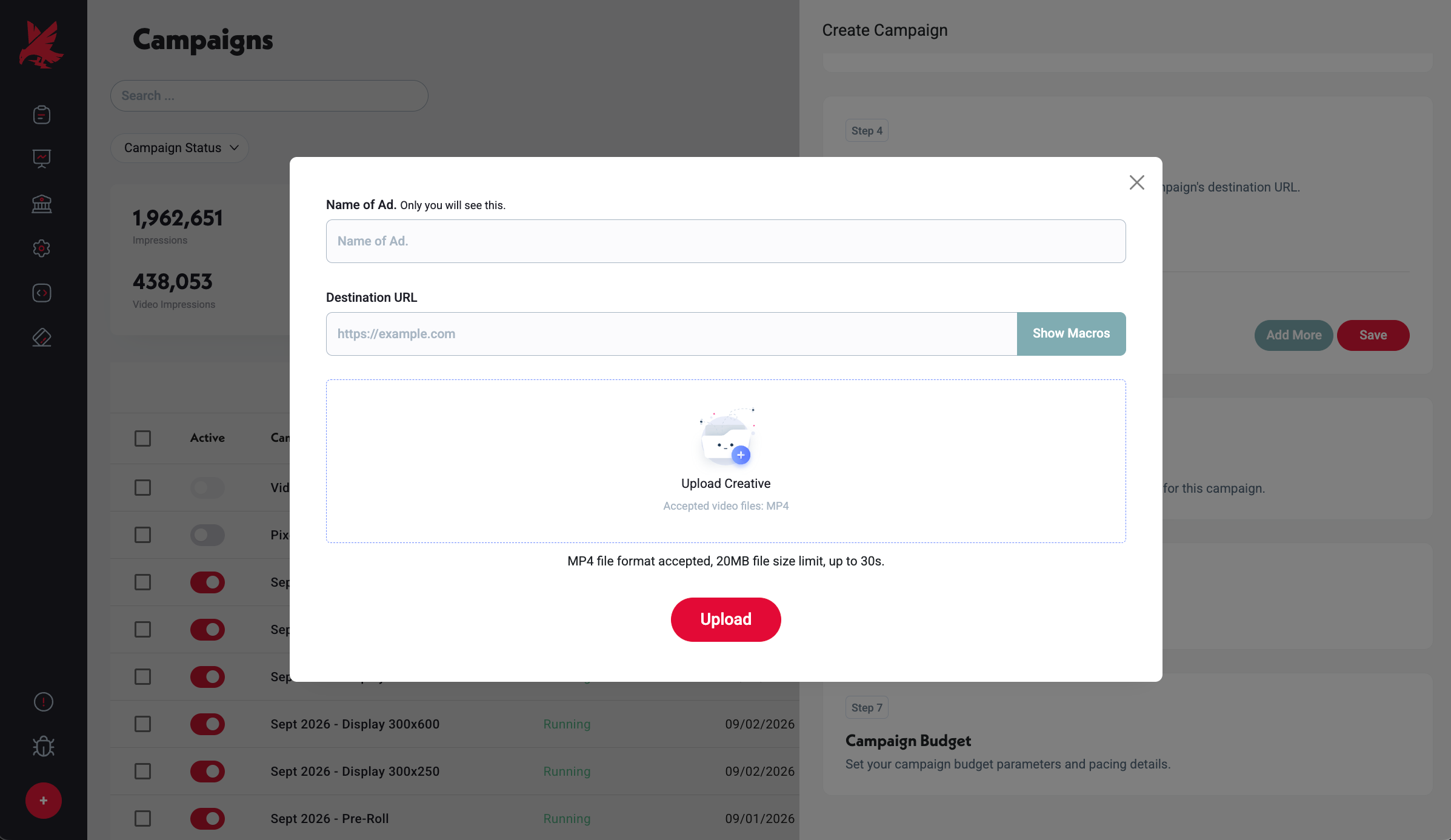
- 1During campaign creation, go to the Creative step.
- 2Upload your first creative, name it, and set a destination URL.
- 3Click Add Creative to upload another file.
- 4Repeat for each variation.
- 5Each creative gets its own name and destination URL. Use a clear naming convention — Platform_Brand_Campaign_Format_Size_Variation — so creative reporting is readable.
- 6Save the campaign.
Viewing Creative Performance
Once the campaign is running, go to the Variations tab in your Campaign Chart to compare impressions, clicks, CTR, and conversions per creative. See Creative Variation Reporting for a full walkthrough.
Common Mistakes
- 1Forgetting to add a destination URL to each creative individually — each creative variation requires its own destination URL. A creative without a valid destination URL won't serve.
- 2Mixing incompatible file types within a single campaign — all creatives in a campaign must match its type (Display or Video). You cannot mix display and video creatives in the same campaign.
- 3Uploading creatives that don't all meet Ad Specifications — if one creative fails spec, it won't serve, but the others will. The Variations tab will show zero impressions for the non-serving creative, which is often the signal to check its file against spec.
Was this helpful?