
Bulk Editing Campaigns
Change a setting across multiple selected campaigns at once instead of editing each individually.
Last updated September 1, 2026
Watch
Bulk Update Ad Campaigns
Change a setting — pause, budget, dates — across multiple selected campaigns at once instead of editing each individually.
What Bulk Editing Does
Bulk editing lets you apply a single change — pause, budget adjustment, date extension, pacing switch — to several campaigns simultaneously. This is useful when you are managing a large number of campaigns and need to make the same adjustment across all of them without opening each one individually.
How to Bulk Edit
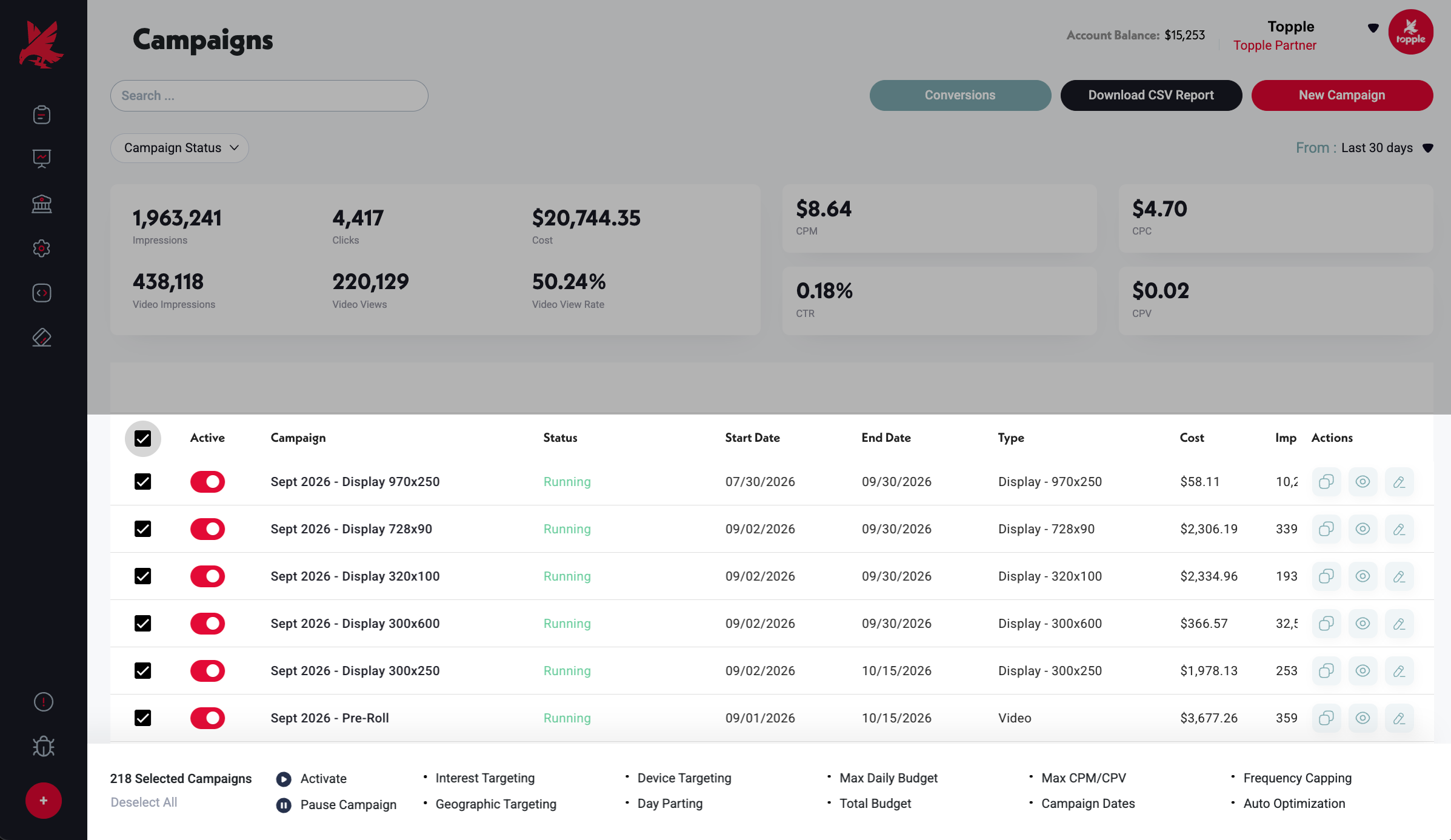
- 1In the Campaign Chart, use the checkboxes on the left side of each row to select the campaigns you want to edit.
- 2Once two or more are selected, a bulk action bar appears above the table.
- 3Choose the action you want to apply — pause, resume, update budget, extend end date, or another available option.
- 4Confirm the change. Topple applies it to all selected campaigns.
Common Mistakes
- 1Applying a budget change to paused campaigns — bulk edits apply to all selected campaigns regardless of status. If you only want to adjust running campaigns, filter or select carefully.
- 2Using bulk edit when campaigns have different structures — bulk edits apply the same value to all selected campaigns. If your campaigns have significantly different budget scales, a single bulk budget change may over- or under-cap some of them.
Was this helpful?